Manual
Notices
Notifications land in the top-right corner of the focused display. You can also quickly access the date and time, battery status, and current weather using the hotkey notices.
Notifications
Notifications from the same app or site stack into a deck, so a chatty Slack channel doesn’t push your build failure off the screen. Hover a deck to fan it out; nothing new slides in under your pointer while you’re reading. Click a card to jump to where it came from, right-click, middle-click, or hit the ✕ to dismiss it.
Cards offer what they carry: Copy code for verification codes (kept out of clipboard history and cleared after a minute), plus any buttons the app provides. Links in a notification’s text open when clicked.
Silencing notifications holds them back, except Omarchy’s own confirmations, emergency alerts, and verification codes, which you asked for a moment ago. Put the last few back on screen, held back or not, with Super + Shift + Alt + ,. History is kept for a day.
Hotkey notices
Date & Time
Super + Ctrl + Alt + T

Weather
Super + Ctrl + Alt + W
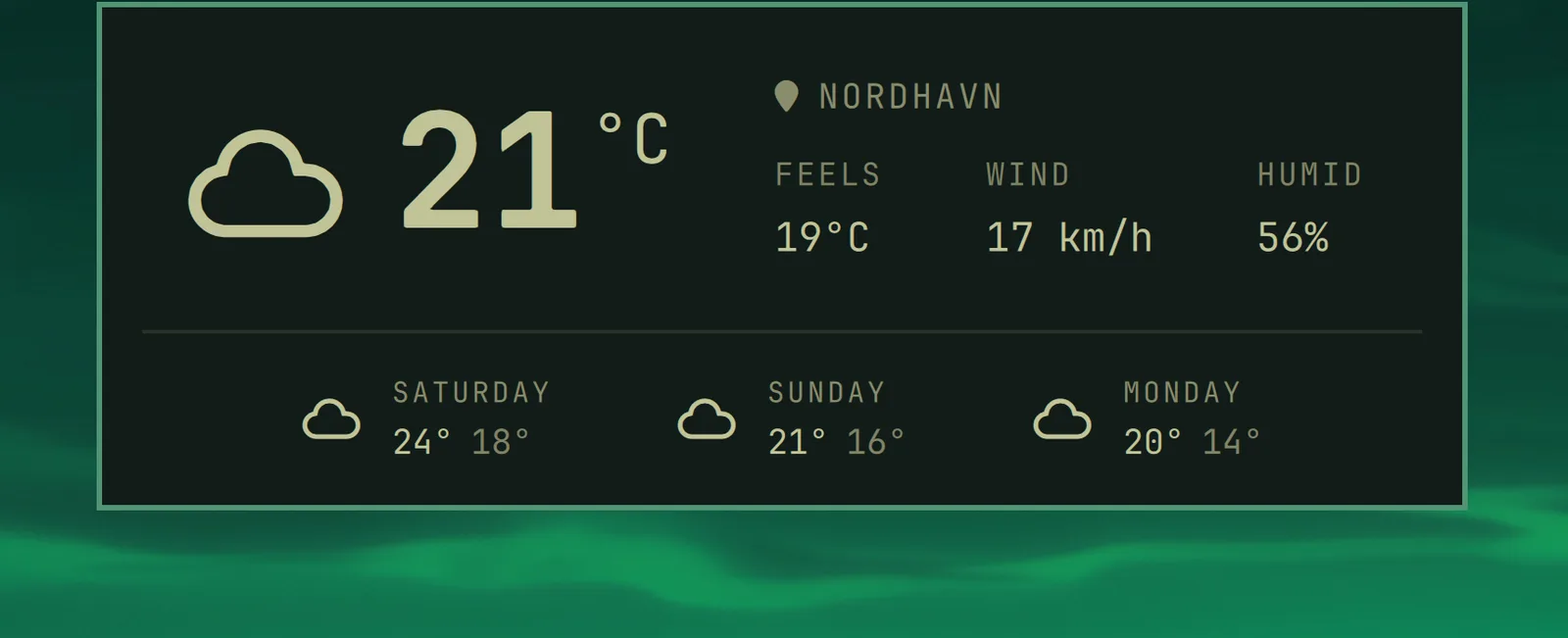
The location is detected from your IP address, which is usually close enough, but not always. You can pin it down with omarchy weather location --set Malibu, or be exact about it by adding coordinates: omarchy weather location --set Malibu 34.0259,-118.7798. Run omarchy weather location on its own to see where it thinks you are, and --clear to go back to auto-detection.
Battery
Super + Ctrl + Alt + B
